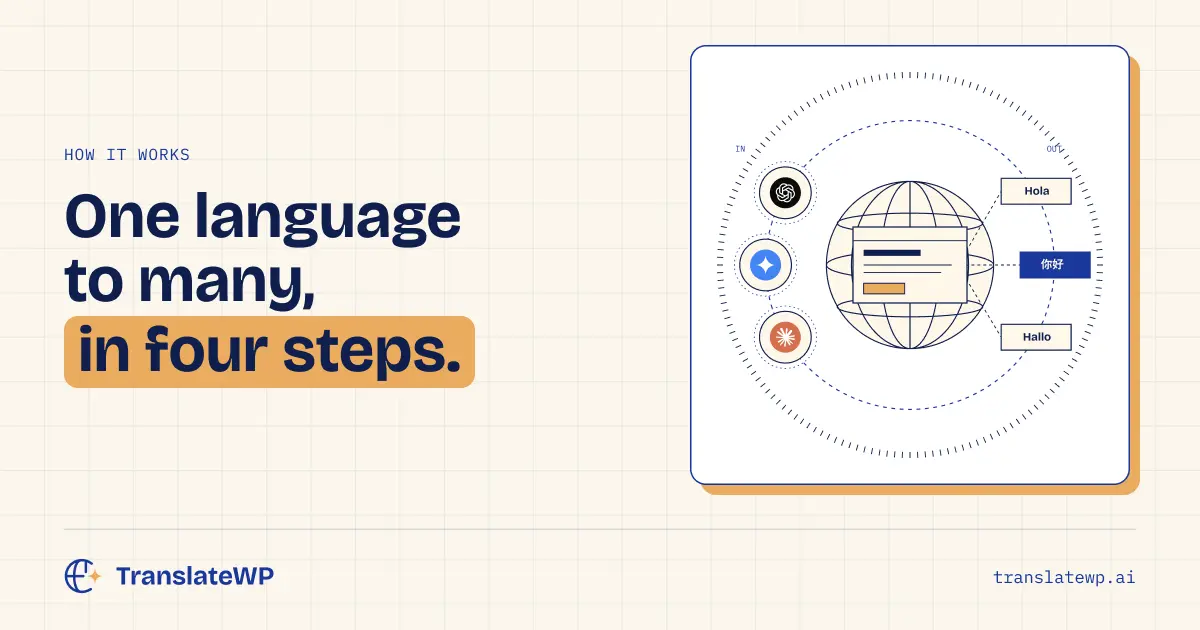
You can translate a WordPress site without copying pages by hand or paying by the word. This guide uses the free TranslateWP plugin, and it takes a few minutes from install to your first translated page. Your translations stay current every time you edit.
What you need first 🧰
- A WordPress site, single site or Multisite
- An administrator login for it
- A free TranslateWP account, which you create during setup
No DNS changes, no migration, no API keys. If another translation plugin is active, TranslateWP warns you about it so you can decide which one stays.
Step 1: Install the plugin 1️⃣
In your WordPress dashboard:
- Go to Plugins > Add New.
- Search for TranslateWP.
- Click Install Now, then Activate.
Prefer to upload it yourself? Download it from the TranslateWP page on WordPress.org. Once it’s active, open TranslateWP in your admin menu and the setup wizard starts.
Step 2: Connect with one click 2️⃣
Click Connect and sign in to your TranslateWP account with Google or an email link. The email link is valid for 15 minutes and brings you back to where you left off.
Approve the site. That’s it, with no keys to paste between tabs.
Step 3: Let TranslateWP read your site 3️⃣
This is where translations start to sound like you. TranslateWP reads your site once and proposes:
- A description of your site, so ambiguous words are read the way you mean them
- A style and a tone, such as warm and conversational, so every language sounds like your brand
Change anything that doesn’t fit. Nothing is translated until you save. If you add a lot of new pages later, run Read my site again from the dashboard.
Step 4: Pick your languages 4️⃣
The picker covers more than 500 languages and regional variants. Add as many as you like.
Your front page and menu pages are translated as soon as you save. Most visitors start on those pages, so they’re ready from day one. A progress ring shows the overall percentage and marks each language when it’s ready. You can close it; translation keeps going in the background.
Every other page is translated the first time someone opens it in a language. Text on screen comes first, top to bottom. The result is stored, and everyone after that gets the page at normal speed.
Adding a language switcher 🔁
A floating switcher appears on every page by default. Drag it into place in edit mode. On phones it moves to the bottom corner, out of the way of your content.
Want it somewhere specific? Use any of these:
- A menu item under Appearance > Menus
- The Gutenberg Language Switcher block
- Any core Button block, switched on as a language button
- A classic widget
- The shortcode
Each language is shown in its own name by default, like Deutsch or Italiano, with a flag. There’s also an option to open the site in each visitor’s browser language.
Teach it your vocabulary 📖
Some words should never be guessed. Add product names, industry terms and signature phrases to the Lexicon and set how each one is translated in each language.
Lexicon rules override the AI. Click Apply now after adding a rule and the translations you already have update too. It’s free on every plan.
Checking your translations 📊
The TranslateWP dashboard shows every language and how much of your site is translated in it. The Indexing tab lists each page per language, with its status and a one-click retranslate.
There’s also an activity log of what ran and when, including anything that didn’t go through. If a settings change would retranslate the whole site, TranslateWP tells you the cost and waits for you to confirm.
Running a Multisite network? 🏢
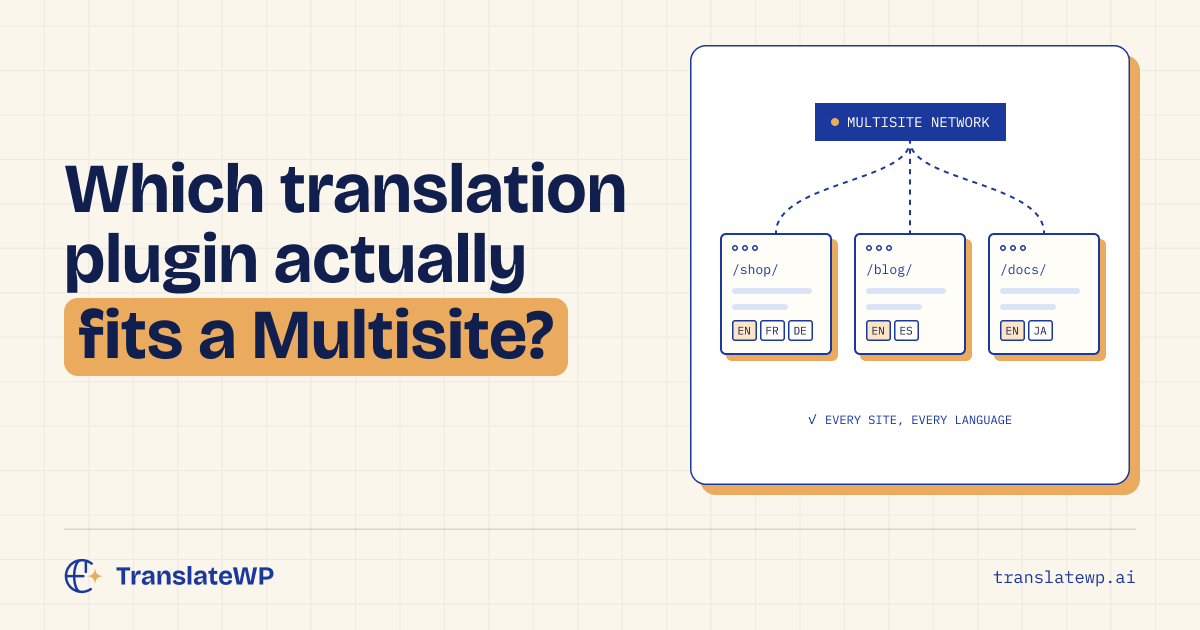
TranslateWP adds its own area in Network Admin. Connect every subsite in one approval or one at a time. A single table shows each subsite’s connection, setup status and languages, and you can copy one subsite’s settings to the rest of the network.
When Orbital (Pro) is worth it ⭐
Everything above is in Terrestrial (Free). Pro adds a faster AI model, your own style and tone, and on-page editing for fixing any sentence where it appears. It also adds translated sitemaps, translated SEO titles and meta descriptions, structured data and IndexNow pings, covered in our guide to multilingual SEO for WordPress.
Once your account is Pro, it installs from inside TranslateWP with one click. Plans are on the TranslateWP site.
FAQ ❓
How long does it take to translate a WordPress site?
Setup takes a few minutes. Your front page and menu pages are translated as soon as you pick your languages, and other pages on their first visit in each language.
Do I have to translate every page before launch?
No. Pages are translated when visitors need them, then stored.
What happens when I edit a page?
The translation follows your edit on the next visit.
Can I fix a translation myself?
Yes. The Lexicon, free on every plan, controls how terms are translated. With Pro you can also edit any sentence on the page, and your correction is kept until the original text changes.
Is it free to translate a WordPress site with TranslateWP?
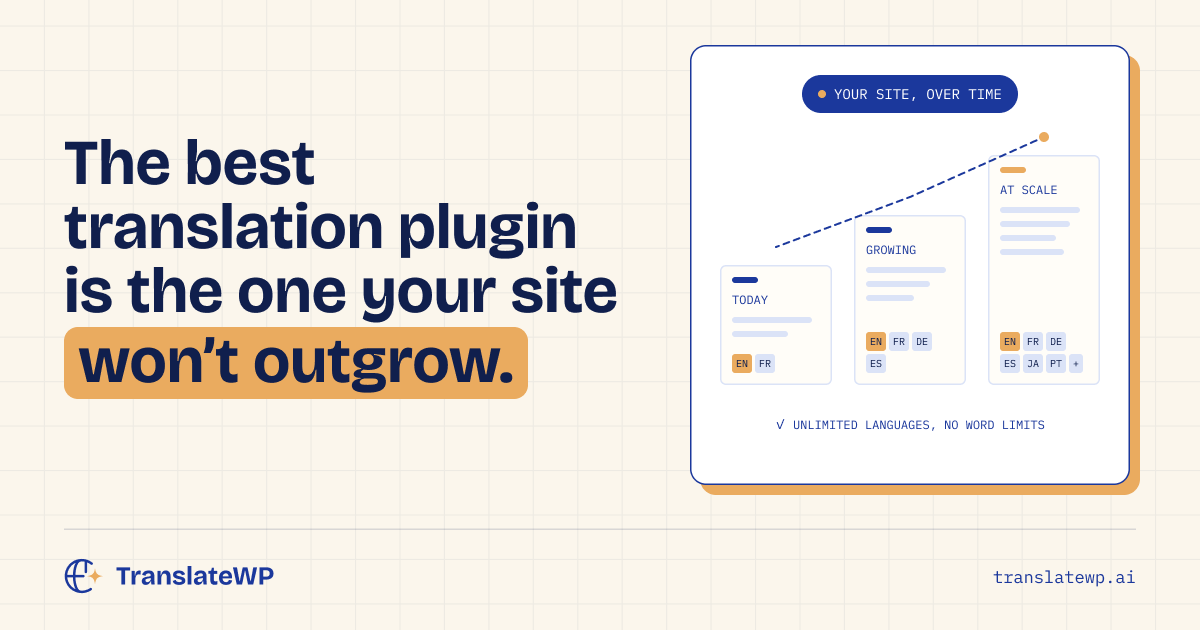
Yes. The free plugin has unlimited websites, unlimited languages and no word-count billing.
New here? Start with our introduction to TranslateWP.
Founders deal, until 7 December 2026, 23:59 Amsterdam time: $59 per year, renewing at $59 while your subscription stays active, or $249 once, for life. Get the founders deal. Lifetime has no renewal and lasts for as long as TranslateWP is offered, subject to fair use. Prices exclude VAT; USD and EUR use the same numbers.